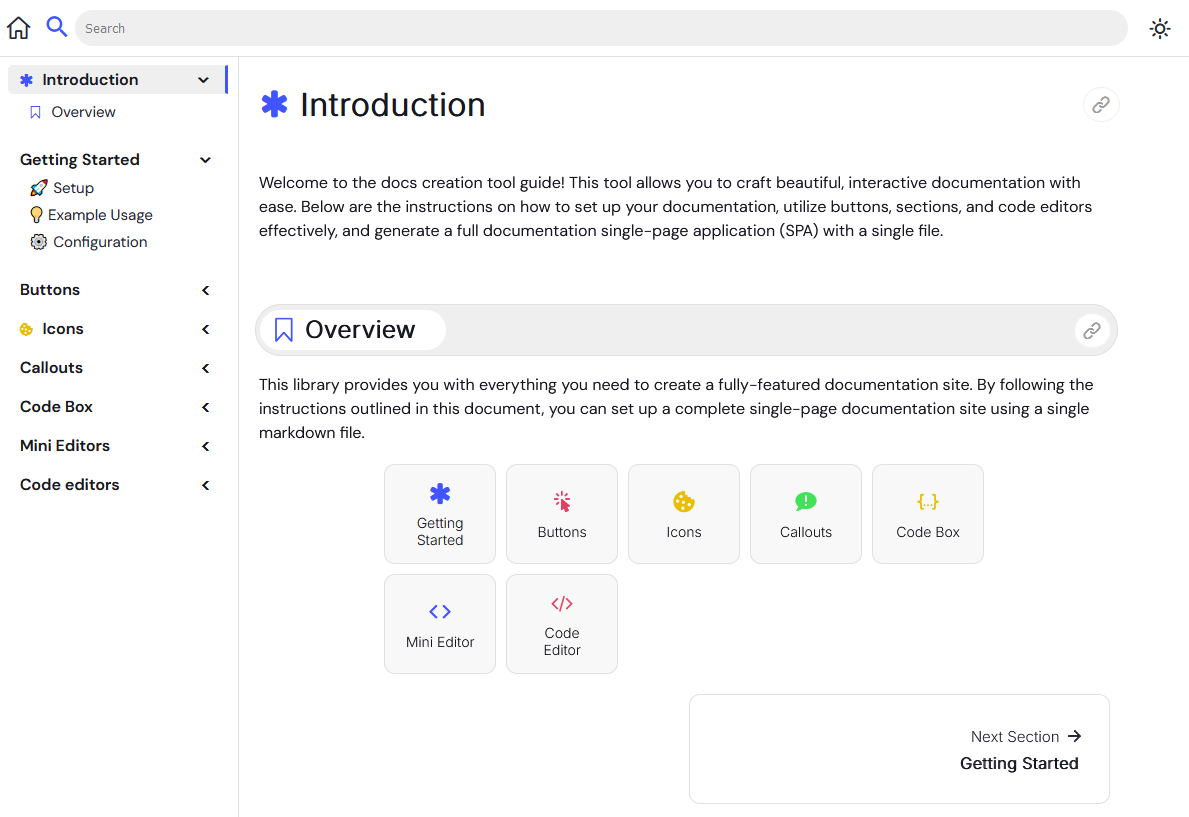
Welcome to the Simple-Docs guide! This tool allows you to craft beautiful, interactive documentation with ease. Whether you’re building open-source project docs, internal manuals, or anything in between, Simple-Docs gives you the flexibility to create a full-featured single-page documentation site from a single markdown file.
For more detailed instructions, advanced customization options, and to see the documentation tool in action, visit the full documentation site: View Full Documentation which is built from Simple-Docs.
Explore how you can leverage all the features Simple-Docs has to offer and learn how to fully customize your documentation site to meet your project's needs.
- Easy-to-use API: Quickly get started with minimal setup.
- Single Markdown File: Generate the entire documentation site from one markdown file.
- Live Code Execution: Run code snippets directly within your documentation.
- Modern Design: Clean, responsive, and modern UI.
- Light/Dark Themes: Switch between light and dark themes based on user preference.
- Custom Buttons and Callouts: Add interactive elements like buttons, callouts, and more.
To start using Simple-Docs, follow these steps:
Clone or download this repository to get all the necessary files to start building your documentation.
The repository contains the following key files and directories:
docs.html: Your main documentation page.docs.js: The Simple-Docs API that powers your documentation.NerdFontsSymbolsOnly: A folder containing icon dependencies.images: A directory to store images used in your documentation.docs.css: The CSS file that controls the styling of your documentation.docs.md: The markdown file where you will write your documentation content.
You generally won’t need to modify any files other than docs.md and docs.html for simple configuration.
To create your single-page documentation site, follow these steps:
-
📝 Create Your Markdown File
Begin by editing thedocs.mdfile. This file will contain all your documentation content, written in markdown format. -
📂 Include the Required Files
Make sure to include the necessary CSS and JavaScript files in yourdocs.htmlfile to ensure everything works correctly. -
⚙️ Generate the Documentation
Thedocs.jsfile will process yourdocs.mdfile and render it as a fully functional single-page documentation site. -
🎨 Customize the Style
You can tweak the look and feel of your documentation by editing thedocs.cssfile. Customize fonts, colors, and layouts to match your brand or personal style. -
🚀 Deploy Your Documentation
Once your site is ready, deploy it by uploading theindex.html,docs.css,docs.js, anddocs.mdfiles to your web server.
Here’s a simple example of how to set up your documentation page:
<!DOCTYPE html>
<html lang="en">
    <head>
        <meta charset="UTF-8" />
        <meta name="viewport" content="width=device-width, initial-scale=1.0" />
        <title>Documentation</title>
        <link rel="icon" href="images/favicon.png" type="image/png" />
        <link rel="stylesheet" type="text/css" href="docs.css" />
    </head>
    <body>
        <script src="docs.js"></script>
    </body>
</html>
This basic setup includes the necessary files to render your documentation content on a web page. The docs.js script will process and display the markdown content written in docs.md.
Customize your documentation by configuring various settings before loading the docs.js script. This allows you to personalize the theme, add branding, and set up navigation links.
Define a docsConfig object in your HTML file before the <script> tag that includes docs.js.
Example Configuration:
window.docsConfig = {
    theme: "dark",  // Default theme if the user has not set one cached.
    url: "https://github.com/your-repo",  // Redirect link for the home button.
    logo: "https://your-logo",  // Replace the home button with an image.
};-
theme:
Set the default theme for your documentation site. If the user has not already selected a theme (which may be cached in their browser), this option will determine the initial appearance.
Options:"dark","light","auto"
Example:theme: "dark" -
url:
Define the redirect link for the home button. This is useful for linking back to a repository, a main website, or any other resource.
Example:url: "https://github.com/your-repo" -
logo:
Replace the default home button icon with a custom logo image. Great for branding your documentation with a company logo or project icon.
Example:logo: "https://your-logo"
To apply these settings, include the configuration object in your HTML file before the docs.js script tag:
Example Usage:
<!DOCTYPE html>
<html lang="en">
<head>
    <meta charset="UTF-8">
    <meta name="viewport" content="width=device-width, initial-scale=1.0">
    <title>Documentation</title>
    <link rel="icon" href="images/favicon.png" type="image/png">
    <link rel="stylesheet" type="text/css" href="docs.css">
    <script>
        window.docsConfig = {
            theme: "dark",
            url: "https://github.com/your-repo",
            logo: "https://your-logo",
        };
    </script>
</head>
<body>
    <script src="docs.js"></script>
</body>
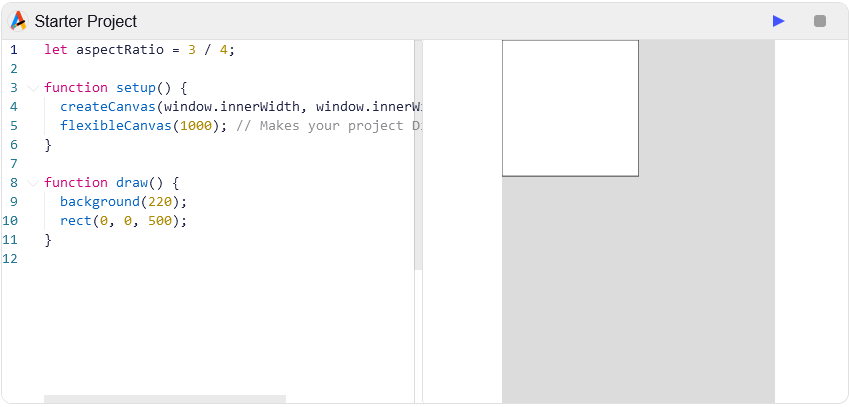
</html>One of the benefits of using Simple-Docs is built in mini-IDE powered by , constructed directly from your markdown file.
- Documentation: Full Documentation
- GitHub Repository: View on GitHub
- AIJS Mini Editor: View on GitHub
- AIJS Code Editor: Full Documentation
- Nerd Fonts: Cheat Sheet
We welcome contributions to Simple-Docs! If you have suggestions, bug reports, or would like to contribute code, please open an issue or submit a pull request on GitHub.
Alternatively, reach out on Discord or join our community: https://discord.com/invite/eW7MbvXZbY
To support this project, please consider becoming a patron.