
Library for debugging views in the SwiftUI environment. Implement it easily in previews or directly in your app using the connectDebugger method on your view.
Compatible with iOS 15.0 and later


Ship pixel-perfect SwiftUI — without ever leaving the canvas. One modifier. Every environment. Real time.
 |
 |
 |
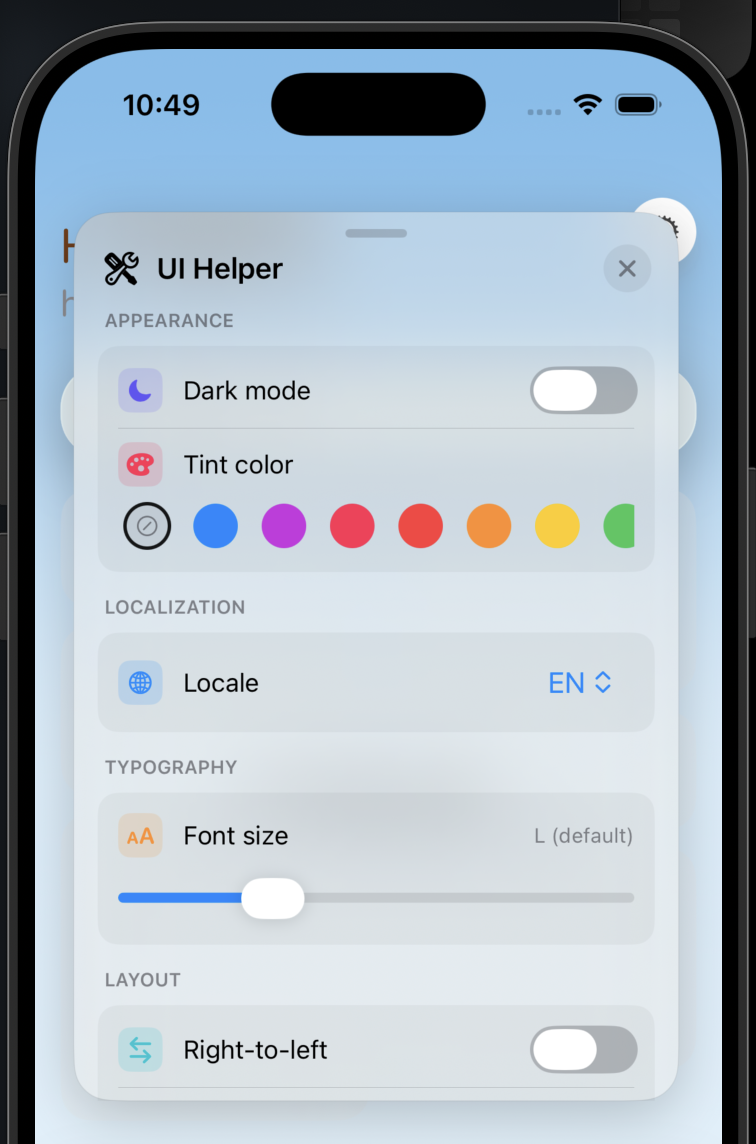
| One panel, every mode. Dark mode, tint, locale, Dynamic Type & RTL — flip them all from a single floating panel. |
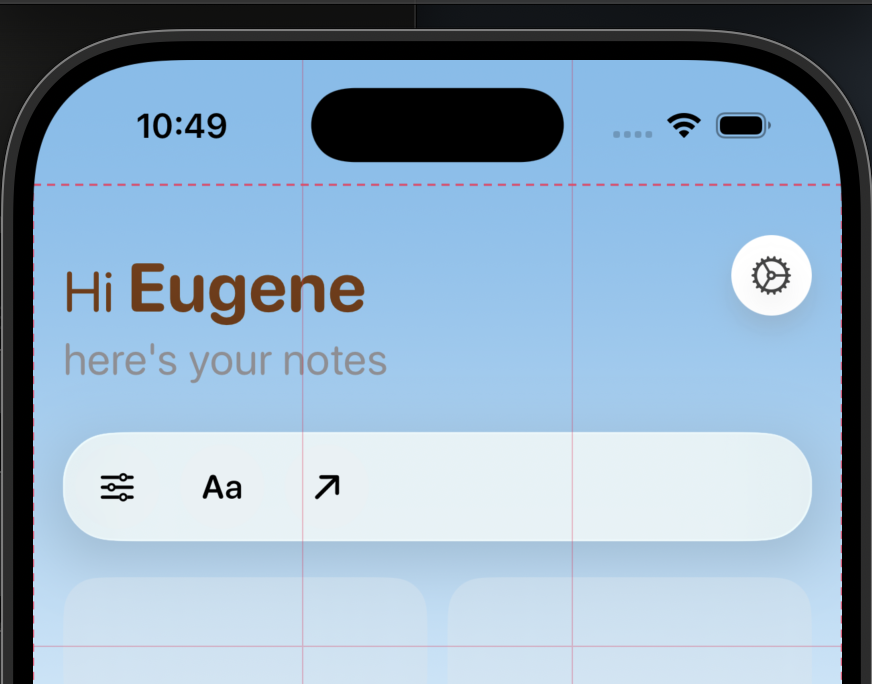
Nail the layout. Safe area, rule-of-thirds & dead-centre guides drawn right over your view. |
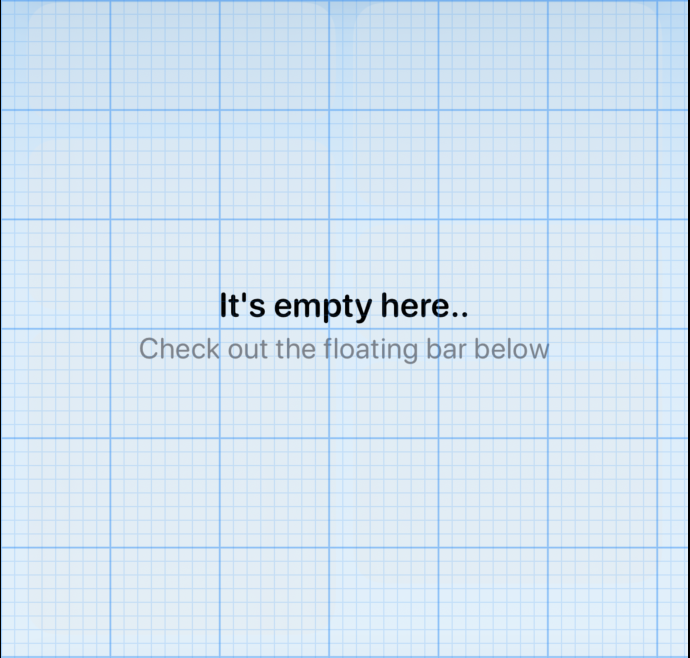
Pixel-perfect, literally. A precision grid so every margin, gap & corner lands exactly where you meant it. |
Preview Debugger is a lightweight SwiftUI overlay that lets you exercise your views under different environment conditions without leaving the canvas. Attach a single modifier to any view and a floating control panel appears, letting you flip the color scheme, change the locale, scale Dynamic Type, swap layout direction, toggle accessibility, watch the main thread for stalls, and capture a screenshot — all in real time. It is designed to live inside a #Preview, so you can validate light/dark, RTL, large text, and localization in seconds.
| Feature | Description | |
|---|---|---|
| 🌗 | Color scheme | Switch the whole app between Light and Dark color scheme in one click. |
| 🌐 | Locale | Switch between the locales supported by your app to preview localized content. |
| 🔠 | Dynamic Type | Change the font size dynamically with a simple slider. |
| Layout direction | Switch between left-to-right and right-to-left layout direction. |
|
| 🎨 | Tint color | Preview your view under different accent/tint colors on the fly. |
| ♿️ | Accessibility | Turn on accessibility to make sure everyone can use your app. |
| ▦ | Pixel grid | Overlay an alignment grid with major/minor lines for pixel-perfect spacing. |
| 📐 | Layout guides | Visualise the safe area, rule-of-thirds and screen centre. |
| ⏱️ | Main-thread watchdog | Monitor the main run loop and get notified when it stalls (UI hangs). |
| 📸 | Screenshot | Capture the current view and save it to the photo library. |
| ♻️ | Reset all | Restore every option back to the environment defaults in one tap. |
The control panel is draggable (grab the handle at the top), collapses into a floating button, and its own UI is localized (English & Russian included).
Preview Debugger is distributed via the Swift Package Manager.
- In Xcode, go to File ▸ Add Package Dependencies…
- Paste the repository URL:
https://github.com/kovs705/PreviewDebugger - Choose the
mainbranch (recommended for the latest features) or a version rule. - Add the PreviewDebugger library product to your target.
dependencies: [
    .package(url: "https://github.com/kovs705/PreviewDebugger", branch: "main")
]
Then add it to your target's dependencies:
.target(
    name: "YourTarget",
    dependencies: ["PreviewDebugger"]
)Import the library and attach .connectDebugger() to the parent view you want to inspect. It is best used inside a #Preview canvas, where the overlay can drive the environment.
import SwiftUI
import PreviewDebugger

#if DEBUG
#Preview {
    ContentView()
        .connectDebugger()
}
#endifconnectDebugger(isVisible:) accepts a Binding<Bool> so you can show or hide the overlay programmatically (it defaults to always visible):
struct DebugWrapper: View {
    @State private var showDebugger = true

    var body: some View {
        ContentView()
            .connectDebugger(isVisible: $showDebugger)
    }
}The onChange: callback fires whenever the user changes one of the debugger's modes. The closure receives an EnvironmentValues.Diff option set describing what changed:
ContentView()
    .connectDebugger { diff in
        if diff.contains(.colorScheme) {
            print("Color scheme changed")
        }
        if diff.contains(.locale) {
            print("Locale changed")
        }
        if diff.contains(.dynamicSize) {
            print("Dynamic Type size changed")
        }
        if diff.contains(.layoutDirection) {
            print("Layout direction changed")
        }
        if diff.contains(.accessibilityEnabled) {
            print("Accessibility toggled")
        }
}The watchdog observes the main run loop and posts a notification when the main thread stalls. Start and stop it wherever you need to track potential UI hangs:
Watchdog.shared.start()
// ...
Watchdog.shared.stop()
The stall threshold is configurable (defaults to Watchdog.defaultThreshold, 4 seconds):
Watchdog.shared.start(threshold: 0.25) // flag stalls longer than 250 ms
Watchdog.shared.configure(threshold: 1) // adjust on the fly, even while running
Tip: Preview Debugger is best used inside a
#Preview, where you can validate light/dark mode, localization, Dynamic Type, and RTL layouts without launching the app.
- SwiftUI, iOS 15+ and iPadOS
- macOS 13 support is in progress
- For taking screenshots, your app needs the
NSPhotoLibraryAddUsageDescriptionkey in itsInfo.plist
API documentation is available as a DocC catalog in Sources/PreviewDebugger/PreviewDebugger.docc. Build it from Xcode via Product ▸ Build Documentation, or generate it from the command line with swift package generate-documentation (requires the Swift-DocC Plugin). Start with the Getting Started article.
Preview Debugger is available under the MIT license. See the LICENSE file for details.